Digital organization tips for your devices
Your devices are drowning in digital clutter, and you're wasting precious time hunting for files, photos, and emails buried in the chaos. This guide shares practical digital organization tips for busy professionals, students, and anyone tired of scrolling through endless folders to find what they need.
We'll walk through how to streamline your file system so everything syncs perfectly across your phone, laptop, and tablet. You'll discover smart strategies to organize digital photos and videos that actually stick, plus email organization tips that cut your inbox stress in half. We'll also cover desktop cleanup methods and simple maintenance routines that keep your digital life running smoothly without constant effort.
Get ready to transform your scattered digital mess into an organized system that saves you hours every week.
Streamline Your File System Across All Devices
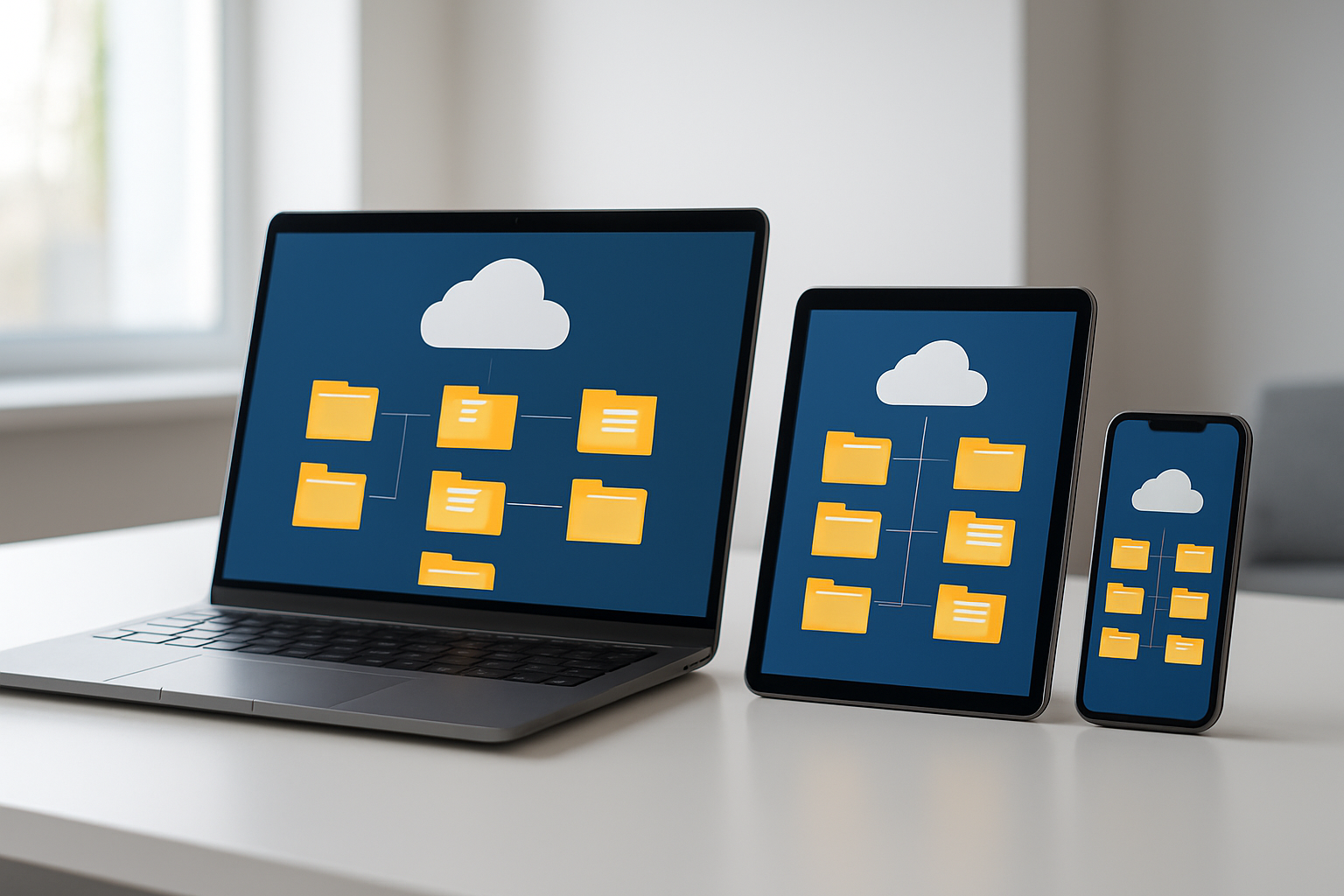
Create consistent folder naming conventions
Your digital life becomes infinitely easier when you establish clear naming rules that work across all your devices. Start by choosing a format and stick with it religiously. For example, use formats like "2024_ProjectName_Description" for work files or "YYYY-MM-DD_EventName" for personal documents. This systematic approach to organize computer files ensures you can locate anything within seconds, regardless of which device you're using.
Avoid spaces in folder names since some systems handle them differently. Instead, use underscores, hyphens, or camelCase formatting. Keep names descriptive but concise—aim for 25 characters or less when possible. This digital organization tip prevents truncation issues and makes navigation smoother across different platforms and devices.
Establish a unified hierarchy structure
Building a consistent folder structure is like creating a digital roadmap that guides you to any file quickly. Design your top-level folders around major life categories: Work, Personal, Finance, Health, and Hobbies. Under each main category, create subcategories that mirror your actual workflow and storage needs.
Your work folder might contain subfolders for Projects, Admin, Templates, and Archive. Personal files could be organized into Photos, Documents, Creative, and Reference. The key is replicating this exact structure on every device you use. When your laptop, tablet, and phone all follow the same organizational pattern, switching between devices feels seamless.
Consider creating a master template document that outlines your folder structure. This serves as your reference guide when setting up new devices or cleaning existing ones.
Eliminate duplicate files and folders
Duplicate files are digital clutter that wastes storage space and creates confusion. Regular cleanup sessions help maintain an efficient file management system across all your devices. Use built-in tools like Windows' Duplicate Cleaner or Mac's Smart Folders to identify copies automatically.
Start with your Downloads folder, which typically accumulates the most duplicates. Sort files by name, size, or date to spot obvious copies. Pay special attention to documents you might have saved in multiple locations or photos that exist in both your camera roll and organized albums.
Create a simple rule: keep the highest quality version in your designated permanent location and delete all others. For important documents, maintain one master copy in your main filing system and create shortcuts or aliases if you need quick access from other locations.
Set up automatic syncing between devices
Cloud storage services like Google Drive, Dropbox, or iCloud make device synchronization effortless when configured properly. Choose one primary service as your main hub to avoid confusion and conflicting file versions. Set up selective sync to ensure important folders automatically update across all devices while keeping less critical files stored only in the cloud.
Configure your sync settings thoughtfully. Your Desktop and Documents folders should sync automatically, but large media files might be better stored locally on just one device to save bandwidth and storage space. Most cloud services offer smart sync features that download files on-demand, giving you access to everything without filling up your local storage.
Regular maintenance of your sync settings prevents storage overages and ensures smooth operation. Review which folders need constant access versus occasional reference, adjusting your sync preferences accordingly.
Master Your Digital Photo and Video Storage
Sort media by date and event categories
Your digital photo collection can quickly become overwhelming without a proper sorting system. Most smartphones automatically organize photos by date, but you can take this a step further by creating custom folders for specific events like vacations, birthdays, or holidays. This digital organization tip saves countless hours when you're looking for that perfect shot from your summer trip.
Create a hierarchical folder structure starting with the year, then breaking down into months or specific events. For example: "2024/January/Weekend Getaway" or "2024/Family Events/Mom's Birthday." This system works across all devices and makes your digital photos searchable and accessible.
Delete blurry and unnecessary photos regularly
Digital declutter sessions should include ruthless photo editing. We all take multiple shots of the same moment, and most of those extras just eat up valuable storage space. Set aside time weekly to scroll through recent photos and delete duplicates, blurry shots, and unflattering pictures.
Your phone's built-in tools can help identify similar photos and suggest deletions. Many devices now offer smart suggestions for photos that are poorly lit or out of focus. Don't let sentimentality cloud your judgment – keeping only your best shots makes your entire collection more enjoyable to browse.
Use cloud storage for backup and accessibility
Cloud storage solutions like Google Photos, iCloud, or OneDrive provide seamless backup and cross-device access to your media files. These digital storage solutions automatically sync your photos and videos, protecting them from device failure or loss. Most services offer generous free storage tiers, with affordable upgrade options for heavy users.
Enable automatic backup on all your devices to ensure new photos are immediately secured. This creates a reliable file management system that works in the background, giving you peace of mind while freeing up local storage space.
Create albums for easy retrieval
Albums function as virtual photo books that make browsing and sharing much simpler. Create themed albums like "Family Portraits," "Travel Adventures," or "Pet Photos" to organize digital photos beyond basic chronological sorting. This approach transforms your photo library from a endless scroll into curated collections.
Most platforms allow you to add the same photo to multiple albums without duplicating files, making your organization system flexible and efficient. Share entire albums with family members or create collaborative albums where multiple people can contribute photos from the same event.
Optimize Your Email Management Strategy
Unsubscribe from Unwanted Mailing Lists
Your inbox doesn't have to be a chaotic mess of promotional emails and newsletters you never signed up for. Start by going through your recent emails and identifying which senders consistently deliver value versus those that just create digital clutter. For emails you no longer want, scroll to the bottom and click the unsubscribe link rather than simply deleting them.
Be cautious with suspicious senders though - only unsubscribe from legitimate companies you recognize. For questionable emails, mark them as spam instead. Consider using services like Unroll.Me or Clean Email to bulk-unsubscribe from multiple lists simultaneously, saving you hours of manual work.
Create a separate email address for shopping, free trials, and online accounts to keep promotional emails away from your primary inbox. This simple digital organization tip prevents your main email from becoming overwhelmed with marketing messages.
Create Folders for Important Correspondence
Transform your email chaos into an organized digital filing system by creating specific folders for different types of correspondence. Start with broad categories like "Work Projects," "Personal," "Financial," and "Travel," then create subfolders as needed.
Your folder structure might look like this:
-
Work
-
Current Projects
-
Meeting Notes
-
HR Documents
-
-
Personal
-
Family
-
Friends
-
Medical
-
-
Financial
-
Banking
-
Insurance
-
Tax Documents
-
Move important emails into these folders as soon as you've read them. This email organization tip ensures you can find critical information quickly without scrolling through hundreds of messages. Many email clients allow you to color-code folders, making visual identification even easier.
Set Up Automatic Filters and Rules
Email filters work like digital assistants, automatically sorting incoming messages based on criteria you set. Most email platforms offer robust filtering options that can dramatically reduce manual organization time.
Create rules that automatically:
-
Move emails from specific senders to designated folders
-
Flag messages containing keywords like "urgent" or "invoice"
-
Forward certain emails to other accounts
-
Delete emails from known spam sources
-
Star messages from VIP contacts
For example, set up a filter that moves all emails from your bank to a "Financial" folder and marks them as important. Or create a rule that automatically archives newsletters while keeping them searchable. These digital storage solutions work 24/7, maintaining your organized system without constant manual intervention.
Gmail users can access filters through Settings > Filters and Blocked Addresses, while Outlook users can find rules under File > Manage Rules & Alerts. Spend 30 minutes setting up these automated helpers, and you'll save hours of manual sorting each month.
Clean Up Your Desktop and Home Screen
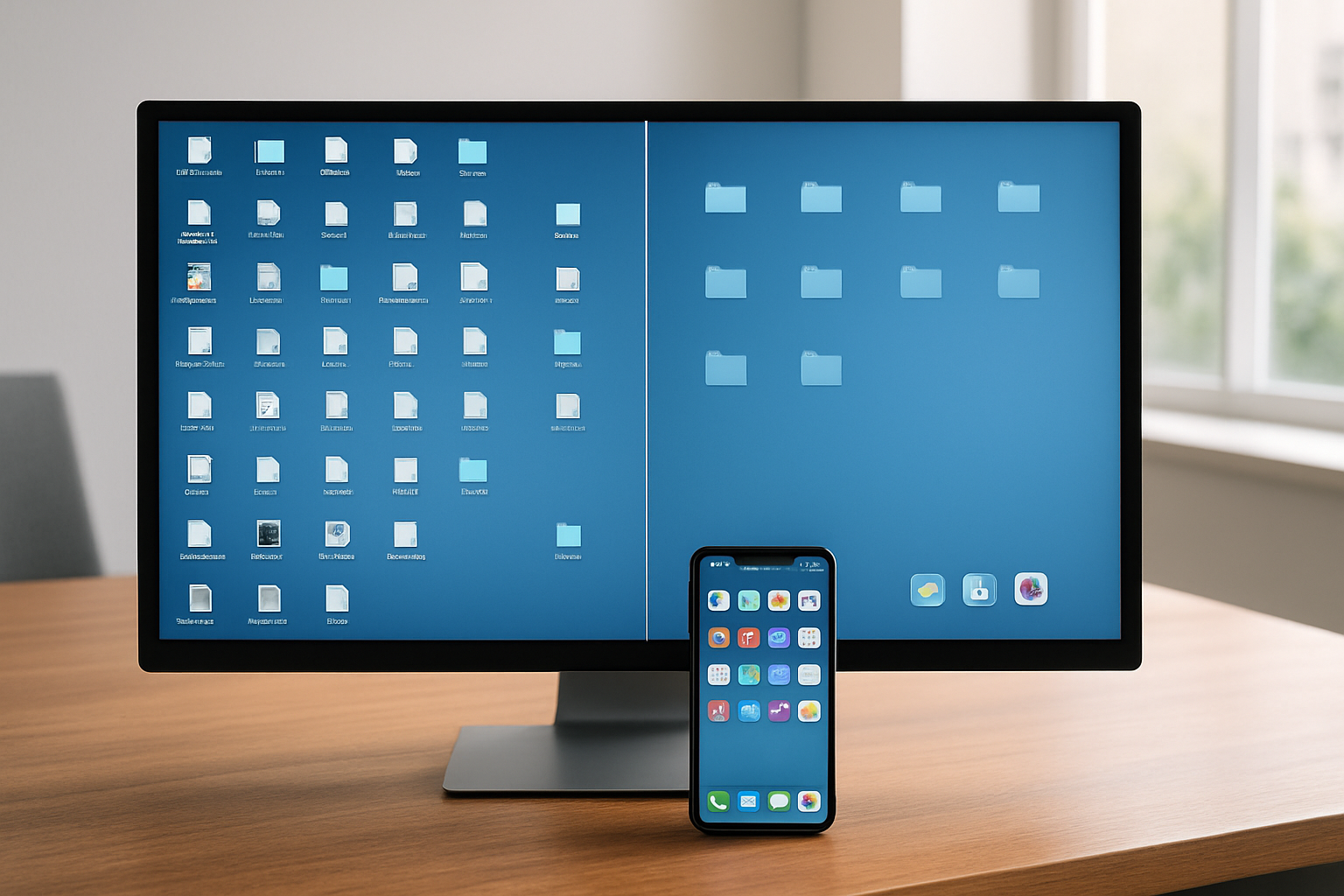
Remove unused shortcuts and apps
Your desktop and home screen probably look like a digital junk drawer right now. Apps you downloaded once and forgot about, shortcuts to programs you never use, and random files scattered everywhere. This digital clutter creates visual chaos and makes finding what you actually need take forever.
Start with your desktop cleanup by ruthlessly deleting shortcuts you haven't clicked in months. Check your app drawer or Applications folder and uninstall anything that doesn't serve a clear purpose in your daily routine. That meditation app you tried twice? Gone. The photo editor you used for one project? Delete it. Be honest about what you actually use versus what you think you might need someday.
Group similar applications into folders
Smart folder organization transforms your chaotic screen into a streamlined workspace. Create logical groupings that match how you think and work. Put all your creative apps (photo editors, design tools, music software) in a "Creative" folder. Bundle productivity apps like calendars, notes, and task managers together. Social media apps deserve their own folder to keep them contained and less tempting.
Name your folders clearly and keep them consistent across all devices. This digital organization tip saves precious seconds every time you need to launch an app, and those seconds add up to hours over time.
Use widgets strategically for quick access
Widgets give you instant access to information without opening apps, but they can quickly turn your screen into a cluttered mess if you're not careful. Choose widgets that show information you check multiple times daily - weather, calendar appointments, or quick notes work well.
Position your most-used widgets where your thumb naturally lands. Keep widgets that display changing information (like weather or news) in prime real estate spots, while static shortcuts can live in less prominent areas.
Maintain a minimal, distraction-free layout
Less really is more when it comes to your digital workspace. A clean, minimal layout reduces decision fatigue and helps you focus on what matters. Stick to one wallpaper that doesn't compete with your icons for attention. Leave white space between elements so your eyes can rest.
Set up your most essential apps - the ones you use multiple times daily - in easily accessible spots. Everything else goes into folders or secondary screens. This approach to digital minimalism creates a calmer, more focused environment that supports productivity rather than hindering it.
Review your layout monthly and ask yourself: "Does this setup still serve how I actually work?" Your digital organization system should evolve with your needs, not trap you in outdated patterns.
Implement Regular Digital Maintenance Routines
Schedule weekly file organization sessions
Setting aside dedicated time each week for digital declutter prevents the overwhelming buildup of disorganized files across your devices. Choose a consistent day and time slot - perhaps Sunday evening for 30 minutes - when you can focus without distractions. During these sessions, sort through recent downloads, move files to their proper folders, and delete items you no longer need.
Create a simple checklist to streamline your weekly routine:
-
Empty Downloads folder and sort recent files
-
Review Desktop and move files to appropriate locations
-
Check recent photos and videos for proper organization
-
Clear browser downloads and temporary files
-
Organize new documents into your established file management system
The key to success lies in consistency rather than perfection. Even 15-20 minutes of focused organization makes a significant difference in maintaining order across your digital workspace.
Update and backup important documents monthly
Monthly maintenance ensures your critical files stay current and protected. Start by reviewing documents that require regular updates, such as budgets, project files, or personal inventories. Check version control to confirm you're working with the latest editions and archive outdated versions appropriately.
Backup procedures should cover multiple layers of protection:
| Backup Type | Frequency | Storage Location |
|---|---|---|
| Cloud sync | Automatic | Google Drive, Dropbox, iCloud |
| External drive | Monthly | Physical drive stored safely |
| Document exports | Monthly | PDF versions for compatibility |
Don't forget to test your backup systems monthly. Verify that cloud syncing works properly and that external drives remain accessible. Update passwords for cloud storage accounts and check available storage space to avoid sync interruptions.
Review and delete old downloads quarterly
Downloads folders become digital junkyards faster than any other location on your devices. Quarterly cleanups prevent storage bloat and improve system performance. Most downloads lose relevance within weeks of being saved, making regular purges essential for effective digital organization tips.
Start by sorting downloads by date and file type. Delete obvious candidates first:
-
Installation files for software already installed
-
Duplicate images or documents
-
Expired coupons or promotional materials
-
Outdated software versions
-
Screenshots taken for temporary reference
For files you're unsure about, create a "Review Later" folder with a three-month expiration date. If you haven't accessed these items by the next quarterly review, they're safe to delete. This approach reduces decision fatigue while maintaining access to potentially important files.
Consider automating parts of this process using built-in tools or third-party applications that can identify duplicate files, large unused items, or files older than specified timeframes. These tools make quarterly maintenance faster and more thorough.
Getting your digital life organized doesn't have to feel overwhelming. Start with one area that bothers you most – maybe it's your cluttered desktop or that overflowing photo gallery – and work from there. The key is creating systems that actually stick, which means keeping things simple and making organization feel natural rather than like a chore.
Remember that digital organization isn't a one-time fix. Set aside just 15 minutes each week to tidy up your files, delete unnecessary photos, and clear out your email inbox. Your future self will thank you when you can actually find that important document or photo without scrolling through hundreds of files. Small, consistent habits beat massive organizing marathons every time.


Comments
Post a Comment